Here’s the situation I was trying to fix: too many browser tabs, scattered notes, and a task list that became a second job. Finding the best productivity apps for mac is less about downloading everything in the App Store and more about building a small system that helps you think, follow through, and finish useful work. The right setup should reduce friction without turning your day into a dashboard-maintenance exercise.
I use a simple test for every tool: does it save time, improve the quality of a decision, or make an important task easier to repeat? If an app cannot do one of those things after a short trial, it does not earn a permanent place on the Mac.
What the best productivity apps for mac should actually do
The best productivity apps for mac usually cover four jobs: capturing information, deciding what matters, protecting focus, and reviewing completed work. You do not need four separate subscriptions. Apple Notes, Reminders, Calendar, and built-in Focus modes can handle a surprising amount for free.
The problem is rarely a lack of features. It is the gap between intention and action. A task manager with 40 views will not help if every task is vague. A notes app will not improve your work if meeting notes never become decisions or follow-up actions. Start with the job, then choose the tool.
For example, “prepare weekly operations report” is too large for a useful task list. Break it into “export support volume,” “check unusual changes,” and “write the three-sentence summary.” The app is only the container. Your wording and review habit create the productivity gain.

Best productivity apps for mac for planning and capture
For quick capture, Apple Notes remains a practical starting point. It opens quickly, syncs across Apple devices, supports scans and attachments, and works well for meeting notes or rough thinking. Bear is a good alternative if you want a cleaner writing experience, tags, and a more deliberate notes structure. Notion is stronger when you need connected databases, project pages, or a shared workspace, but it takes more setup.
For tasks, Apple Reminders is enough for many professionals. Smart Lists, tags, due dates, and recurring reminders cover errands, recurring reports, and personal commitments. Todoist is a stronger choice when you manage work across platforms or want natural-language task entry and project organization. Things 3 is appealing if you prefer a polished Mac-first experience and do not need a team workspace.
My practical recommendation is to pick one capture tool and one task tool. Do not maintain the same project in Notes, Notion, Todoist, and a paper notebook unless each has a clearly different purpose. Duplicate systems create quiet anxiety because you are never sure which list is current.
Focus apps that protect attention without theater
Focus is not an aesthetic timer. It is a boundary around a specific kind of work. The best productivity apps for mac support that boundary by reducing interruptions and making the next action obvious.
macOS Focus modes can silence notifications during writing, analysis, or meetings. One useful setup is a Work mode that allows messages from a manager, direct reports, and family while muting social applications. Apple’s Shortcuts can open the documents and applications needed for a recurring workflow, such as a Monday reporting session.
If you need stronger limits, Freedom can block distracting websites and applications across devices, while Session offers a visual timer and structured work blocks. These tools are helpful when you repeatedly open Slack or news sites without making a conscious decision. They are not substitutes for fixing an overloaded calendar.
Try a 45-minute block before paying for another focus subscription. Write one outcome at the top of a note, close unrelated windows, and define what “done” means. For a report, done might mean a draft sent for review, not merely a spreadsheet opened.

The best productivity apps for mac for meetings and follow-up
Meeting productivity comes from turning conversation into accountable next steps. Apple Notes can handle a simple agenda and decisions section. Notion, Craft, or Obsidian can work better if you maintain a searchable knowledge base across projects. Craft is particularly comfortable for polished documents and shared notes, while Obsidian appeals to people who want local files and linked ideas.
AI meeting tools such as Otter.ai or Zoom’s meeting features can help with transcripts and summaries, but treat generated notes as drafts. A transcript may miss a decision, confuse speakers, or present a suggestion as a commitment. Review the output, confirm owners, and remove sensitive information before sharing it.
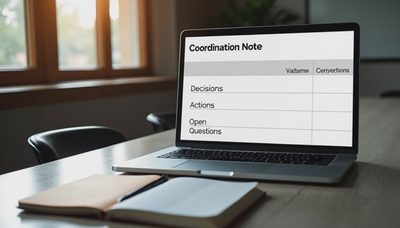
A useful follow-up note has four parts: the decision, the owner, the deadline, and the unresolved question. That structure matters more than the brand of app. After a meeting, spend five minutes moving real actions into your task manager. This is where many systems fail: they record information but never convert it into work.
Privacy, cost, and maintenance matter
The best productivity apps for mac are not automatically the most expensive ones. A workable stack might cost nothing beyond your Apple devices. A paid setup using Todoist, Craft, or a focus tool could run roughly $30 to $100 per year depending on the plan. The price is reasonable only if the app replaces confusion or prevents missed work.
Review privacy settings before connecting email, calendars, cloud storage, or meeting recordings. For employer information, follow company policy and avoid sending confidential documents to an unapproved AI service. Local-first tools can be attractive for sensitive notes, but convenience, backup, and search still matter.
Maintenance is the hidden cost. Schedule a 20-minute Friday review: clear completed tasks, reschedule only genuine commitments, archive stale notes, and choose the three outcomes that matter next week. If the review takes an hour, the system is probably too complicated. Delete features before adding another app.
A one-week test for your Mac productivity stack
Choose one recurring work problem, such as weekly reporting or meeting follow-up. On Monday, write the desired result and select one capture tool, one task list, and one focus method. Spend no more than 30 minutes configuring them. During the week, record setup time, interruptions, missed actions, and the quality of the finished work.
On Friday, compare the before and after. Did you finish sooner? Did stakeholders receive clearer updates? Did you spend less time searching for information? If the answer is no, change the workflow before changing the software. Sometimes the fix is a smaller project list or a better calendar boundary.
This experiment also creates useful career evidence. A repeatable reporting workflow can become a documented method, an internal improvement, or eventually a small consulting offer. Better work first. More options next. The app is only valuable when it helps produce proof of a capability.
The best productivity apps for mac are the ones you can explain, maintain, and use during a busy Tuesday. Start with Apple’s built-in tools, add one focused upgrade, and measure the result for a week. Keep what reduces friction, remove what creates maintenance, and make the workflow earn its place.




No feedback yet — submit the first.